
Now that you have your own e-mail address, I'm sure you want to be accessible everywhere. That's understandable and no problem. We explain how to set up your e-mail address on the iPhone.
Step 1. Go to your iPhone Settings > Passwords and accounts and tap New Account.
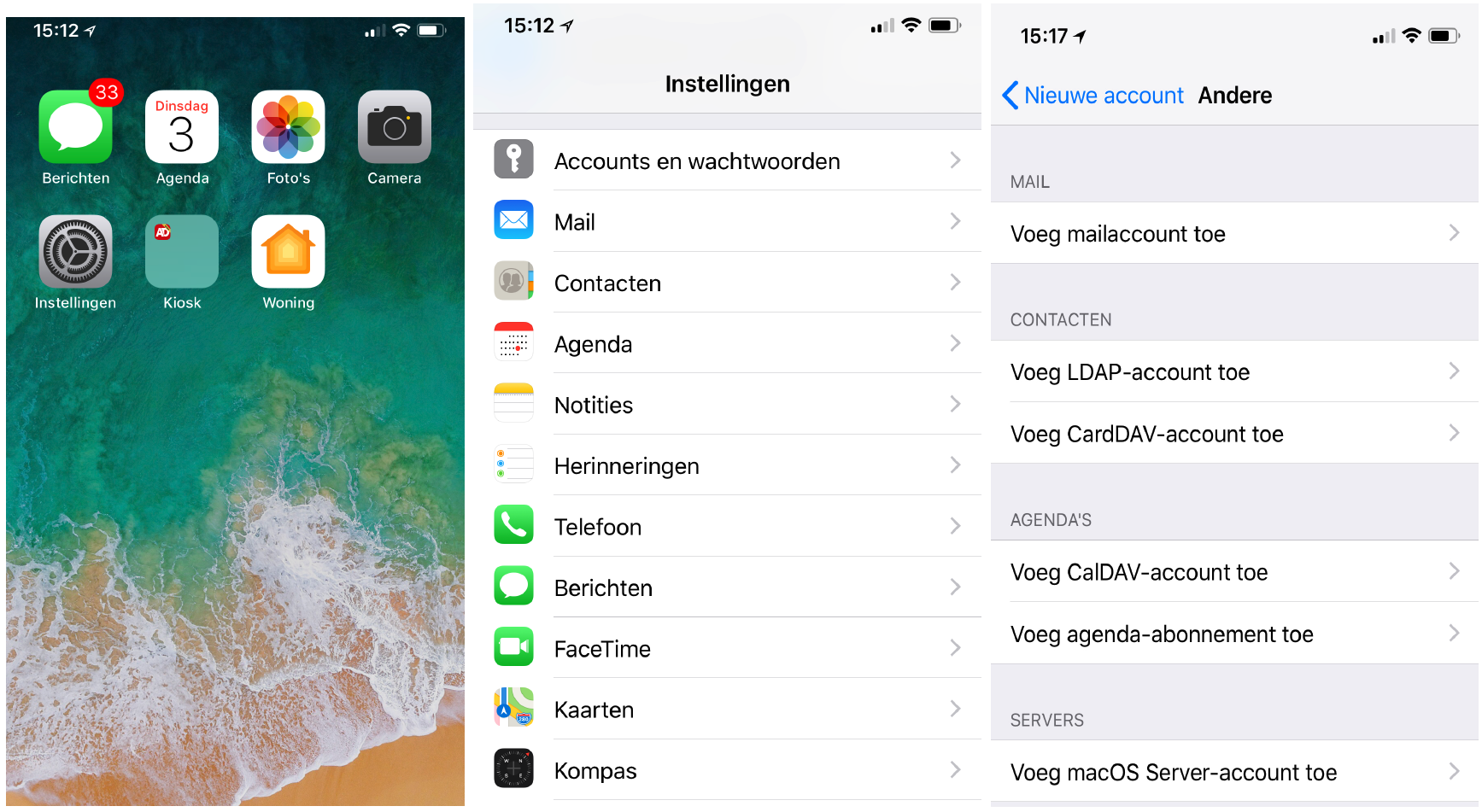
Step 2. Choose on the new screen for Other and tap Add mail account.

Step 3. Enter the requested data. The email address and password must be the same as the email address you added to us. Tap Next.

Step 4. On the new screen you can choose from IMAP and POP. If you choose POP, then all email from the server will be deleted and downloaded to your iPhone. This way the email is no longer reachable from other devices. Therefore, it is better to do so on IMAP ♪ To stand ♪ Server incoming mail and Server outgoing mail enter the following:
- Hostname: mail.domain is "domain" your domain name.
- Username: Here you enter the e-mail address you created.
- Password: Here you enter the password that pertains to the email address.
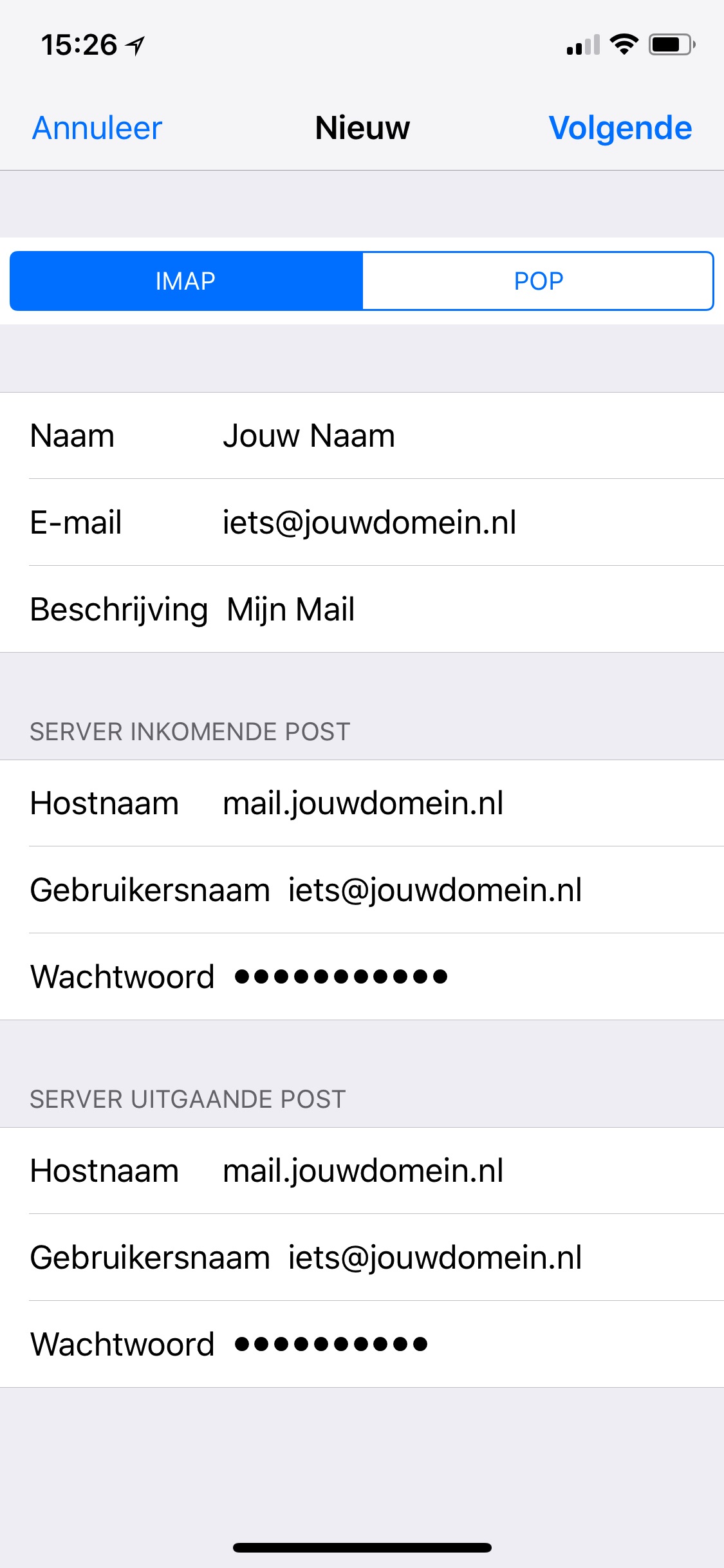
Please note: Despite that, server outgoing mail optional condition it is with us mandatory enter it. These are the same data as the server incoming mail.
Step 6. Tap Up NextThe email address is now set to your iPhone.