
For every software package you install via Softaculous, you can also change the password of your admin account. If you don't know the password, you can always change it.
In this article we explain how to change the admin password via Softaculous.
Step-by-step guide
Step 1. Log in to cPanel.
Step 2. Click under the category Software on Softaculous Apps Installer.
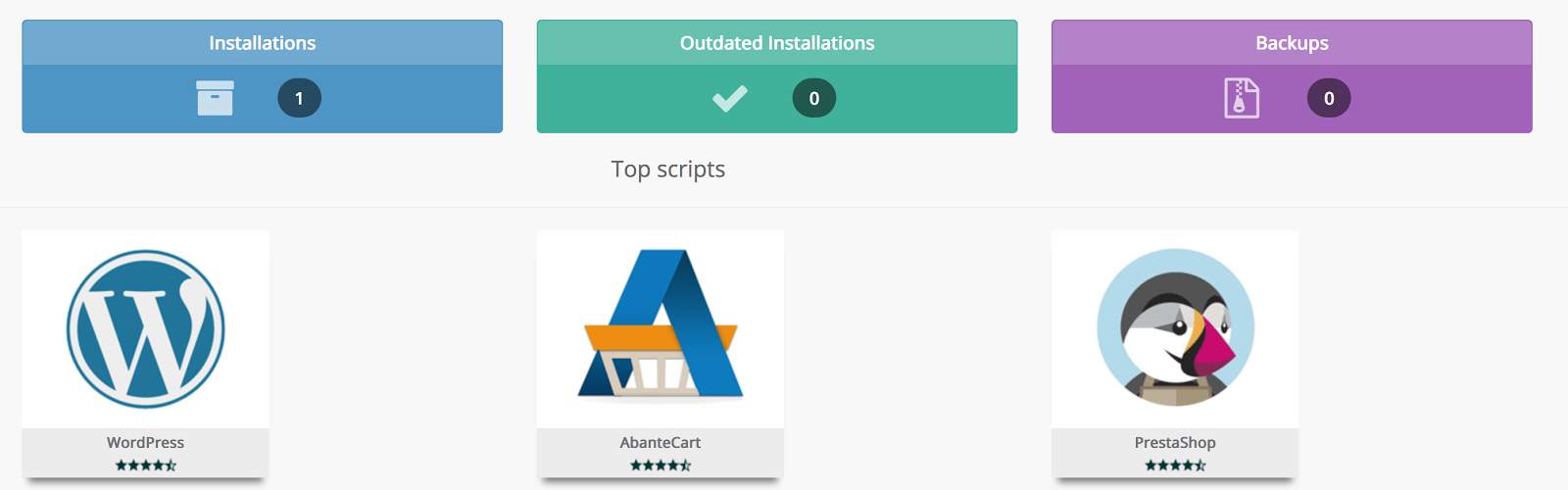
Step 3. Softaculous is now opening. Click at the top Installations.
Step 4. Click on the Edit icon.

Step 5. Fill Under Admin Account your username with Admin username (Otherwise Softaculous doesn't know which username you want to change the password with).
Step 6.. Enter a new password Admin Password.
Step 7. Click Change installation givens.
Step 8. Hooray! You now see a screen that the change has been done. You will also receive an email from Softaculous that a change has taken place.