
WordPress is a free software package that many websites use. You easily install it via Softaculous in cPanel.
Step-by-step guide
Step 1. Log in to cPanel.
Step 2. Click under the category Software on Softaculous Apps Installer.

Step 3. You will be on a new page. In the left menu click on the search bar and type WordPress. Then click on the link WordPress.
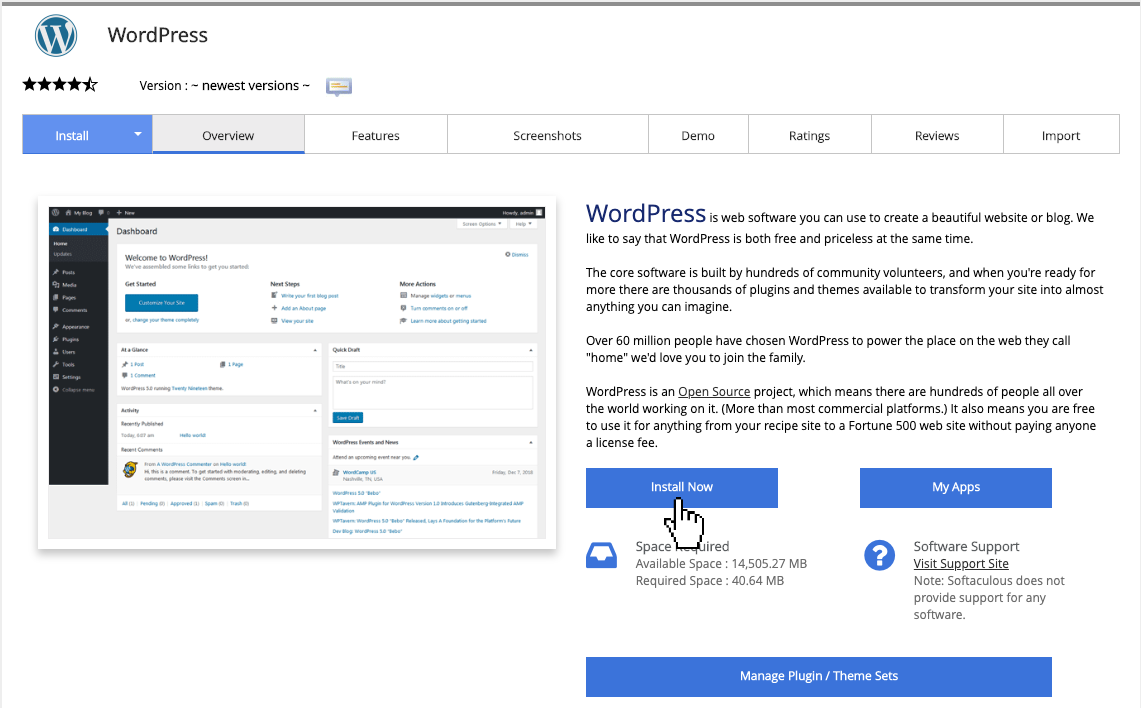
Step 4. You will see a short explanation about WordPress and an overview of all active WordPress installations. Click Install Now to install WordPress.
Step 5. Select On Domain the domain name on which WordPress must be installed.
Tip: If you want to install WordPress in a separate folder, enter Folder the desired name in. WordPress will then be accessible via http://gekozendomein.extensie/gekozenmap.

Step 6. Specify Website Name the name of the website on and at 'Website description' the description.
Step 7. Enter Admin username and Admin Password enter the desired username and password. Then enter the desired username. Admin Email enter the desired email address.
Step 8. Select all the options you want to customize. If you do not want to use a standard theme or plugins, you can go directly to step 9. You can always install plugins or themes later.
Step 9. Click Install to start the installation. After the installation has been completed, you will come to a new page with information about the new installation.
WordPress installation help
If you do not come out or want us to do the installation of WordPress then we will carry out this free of charge with the Plus package. We need the following data to run your installation:
Site name:
Description of the website:
Domain name:
You can e-mail this information to [email protected] for installation.