
Restoring a website backup
Before recovering the backup it is advisable to decide whether you want to lose the current data. Any changes in your website made after the backup date will be overwritten, think of comments, page and blog changes as well as orders in your webshop (this is often stored in the database). If you want to literally go back to the date of the chosen backup, it is advisable to use file management in cPanel first folder where your website is able to empty by moving or deleting those files. Autobackup will only overwrite files when you ask but will not delete files that do not appear in the backup.
Step-by-step guide
Step 1. Log in to cPanel.
Step 2. Under the category 'Files' click on AutoBackup.
Step 3. You get to a new screen. You now see the Dashboard from which you can go to Databases, Files and Email. You will find the backups of the databases below Databases and the files below Files.
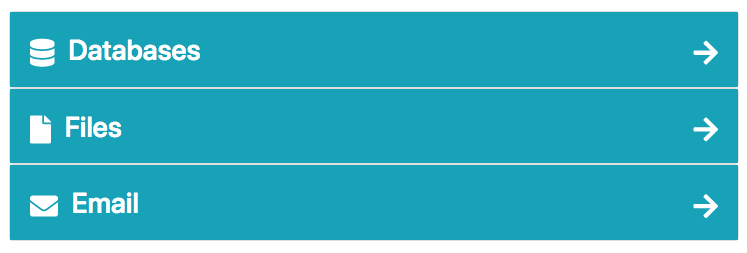
Step 4. Click Files.
Step 5. You can see here on the left an overview of the available backups of the files, sorted by date, from new to old. On the right you can see the history of previous backups that have been recovered.
Step 6. Click on the date from when you want to recover a file backup. You now see a new overview.
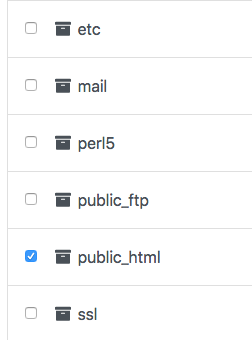
Step 7. You can navigate through the folders by click on the foldersWith the back button you can go back to the previous screen. Then select the folders and their contents you want to restore by placing checkmarks on the bridling folders and files and clicking on Restore selected filesFor the main domain is this always the folder public_html. If you all want to return your package (including emails) then click Full restore.
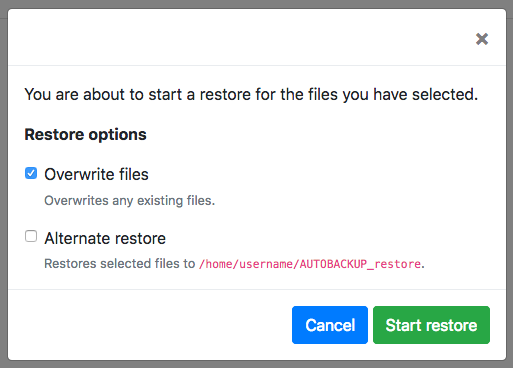
Step 8. You now get a popup with Restore options. Select Overwrite files so that files that were updated are replaced with the version from the backup (if you do not want to leave this option out) If you do want to recover the old version of files but do not want to overwrite the current files then choose the option Alternate restore.
Step 9. Depending on the amount of files you want to recover, the process may take a while. If anything goes wrong during recovery or download, please contact us. We will be happy to help you!
Step 10. When restoring the backup is complete click on Databases Top of the screen.

Step 11. You can see here on the left an overview of the available backups of the databases, sorted by date, from new to old. On the right you can see the history of previous backups that have been restored.
Step 12. Click on the date when you want to restore a database backup.
Step 13. Click on the right Start Restore.
Step 14. The selected databases are now being restored. Depending on the amount of databases and the size of each database, it may take a while. If anything goes wrong during recovery, please contact us. We will be happy to help you!
Step 15. After the database backup has been restored, there is no database user more connected to this database. It is important that you now the current database user rematches You can do this via Back to cPanel - > MySQL Databases - > Add User to Database.