
You can view your email anywhere in the world via our webmail. However, it may be nice to add your email address to the email program on your laptop, desktop and/or smartphone. In this article we explain how to set up your email address in Outlook.
Also read: How do I set up my email on my Android phone?
Step-by-step guide
Step 1. Start Lookout.
Step 2. Click Stock.
Step 3. Click Add Account.
Step 4. Select Manual setting or additional server types and click on Next.
Step 5. Select POP or IMAP and click on Next.
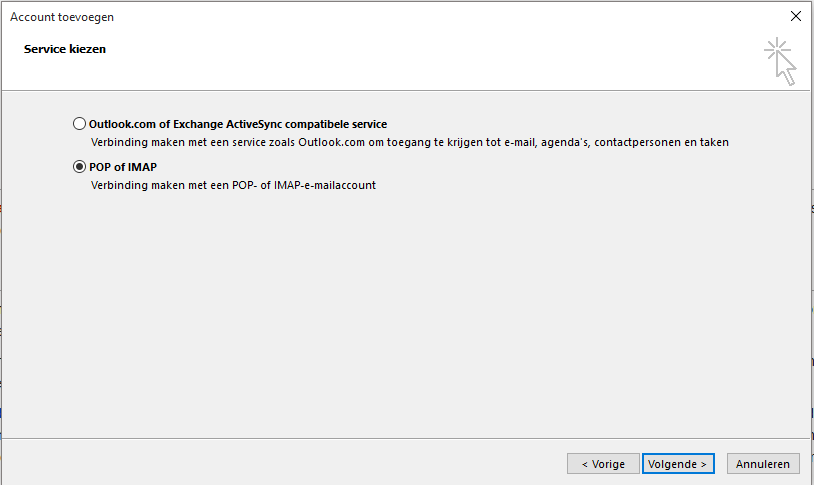
Step 6. Fill in the following details:
-
Name: Here you enter the name of your account.
-
Email address: Here you enter your e-mail address.
-
Account type: Choose whether you want to use POP or IMAP.
-
Server for incoming email: Enter 'mail.domain.extension' here.
-
Outbound mail server (SMTP): Enter 'mail.domain.extension' here.
-
Username: Enter your email address here
-
Password: Enter the password of your e-mail address here.
Also read: How do I create an email address?
Step 7. Click More Settings.
Step 8. Go to the Server tab for outgoing mail.
Step 9. Check the option For the server for my outgoing email (SMTP) is verificatie required On.
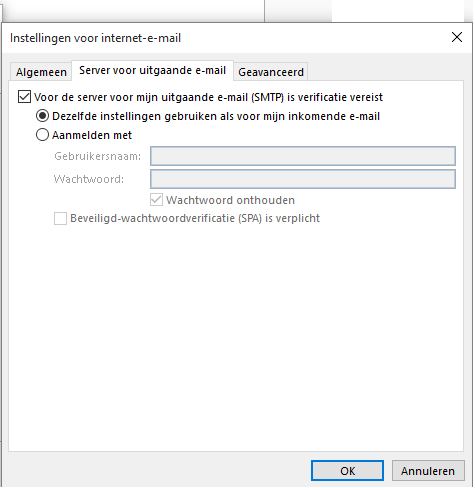
Step 10. Go to the tab Advanced.
Step 11. Fill at incoming port 993 (IMAP) or 995 (POP3) and set up security SSL.
Step 12. Fill in at the outgoing port 465 and put the security on SSL.
Step 13.Click on OK.
Step 14. Click Next and Complete
Step 15. Your email has now been added to Outlook and you can get started with it.