
You can view your e-mail anywhere in the world via the webmail. However, it may be nice to add your e-mail address to the e-mail program on your laptop, desktop and/or smartphone. In this article we explain how to set up your e-mail address in Mail, on a MacOS device. If you want to add an e-mail address to an iOS device, we refer to the iPhone article.
Step 1. Start Mail.
Step 2. Click at the top of the menu bar Mail then on Add Account.
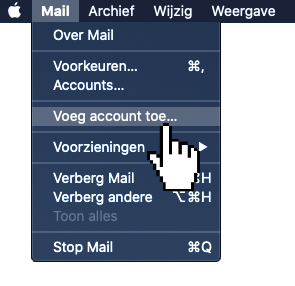
Step 3. Then click on Other Mail Account...

Step 4. Enter a name now, along with the email address you created and the password you set for it. In this example, we use the non-existent domain knowledge bank.neo. Then click Log in.

Step 5. You will be notified that the audit of the account name or password failed. That's okay. You enter the details of your email address now
- UsernameHere you enter the e-mail address you created with us.
- Account Type. Leave your IMAP here if you want to use IMAP (recommended)
- Server incoming mailHere you enter the mail server you want to use. If you use the default mail servers of Neostrada, this is mail.domain. extension, replacing your domain with your domain, and extension by the extension (e.g. .nl/.be/.com)
- Server Outgoing MailHere you enter the mail server you want to use. If you use the default mail servers of Neostrada, this is mail.domain. extension, replacing your domain with your domain, and extension by the extension (e.g. .nl/.be/.com)
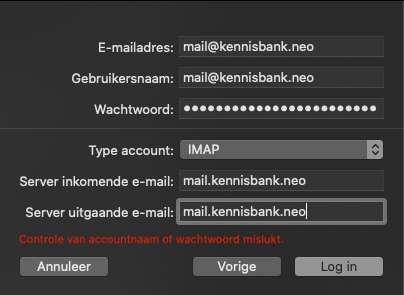
Step 6. Click Log in. You will now see a screen which you ask if you Mail and Notes wants to sync. Make your choice and click Done.
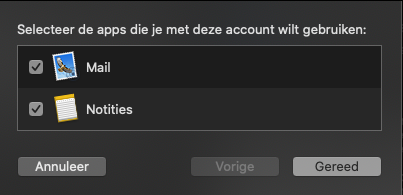
Hooray! Your email address has now been added to Apple Mail.